
Use cases
Open a scan CD on a Mac or Chromebook.
Copy the files from the disc to your computer, then open that folder in NoustaView in a Chromium browser. Nothing is installed and nothing is uploaded.
This is for viewing your images, not interpreting them. The report from the hospital or clinic that did the scan is the place for findings. NoustaView is a review and teaching tool. It is not a certified medical device and is not intended for primary diagnostic use, and it does not replace a calibrated diagnostic workstation.
Steps
- Insert the disc. A Mac or Chromebook without a disc drive needs an external USB CD/DVD drive.
- Copy the whole disc to a folder on your computer. Some discs include a Windows viewer program; you don't need it.
- Open noustadicomviewer.com/app in Chrome, Edge, Brave or Opera.
- Open the folder (or a .zip), or drag it onto the viewer.
- Double-click a series in Studies & Series to load it.
If nothing loads, try opening the folder that holds the image files instead of the top-level folder.
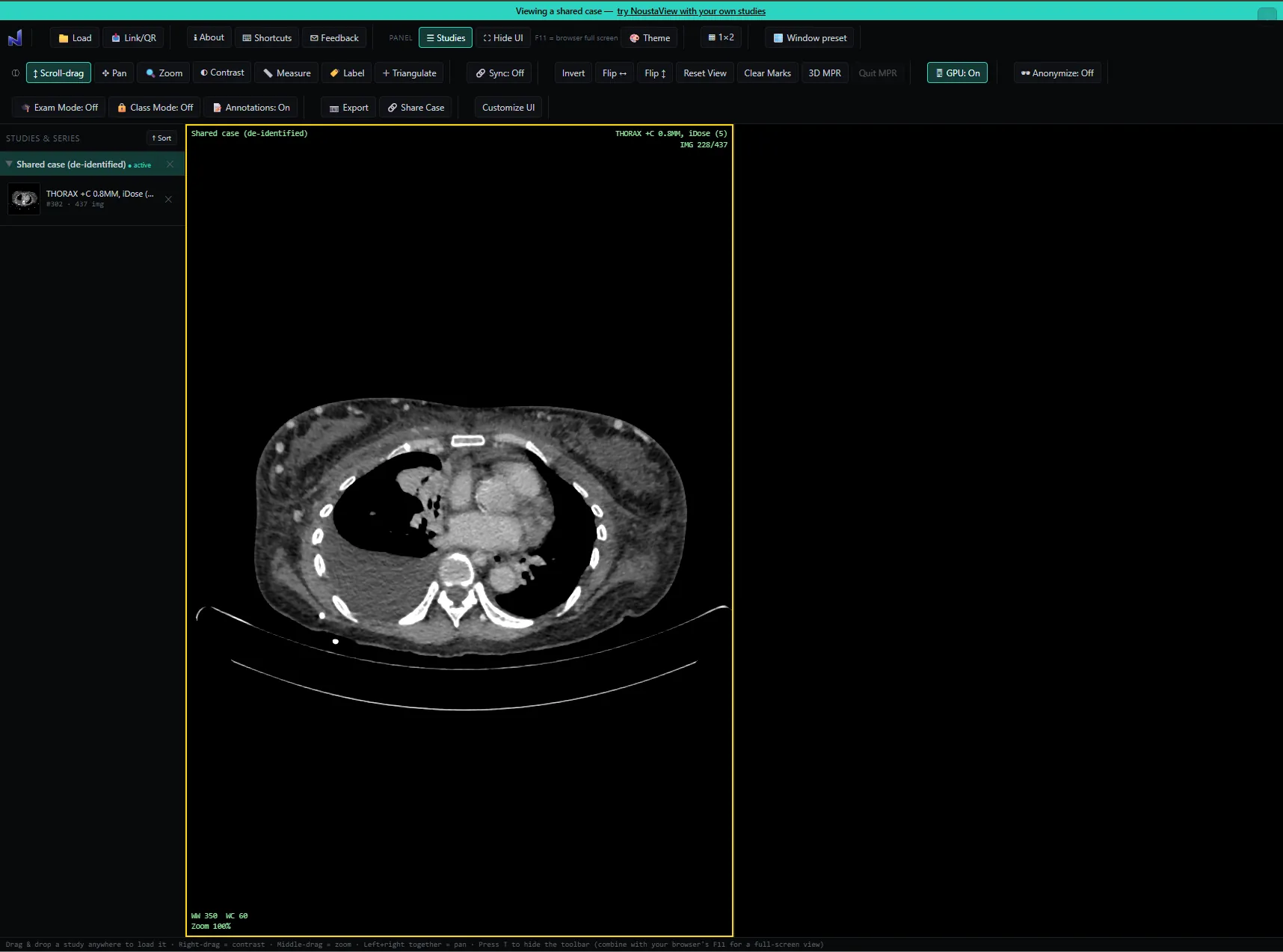
On a Mac
Use a Chromium browser such as Chrome, Edge, Brave or Opera. Safari opens the viewer, but loading a folder may not work there.
On a Chromebook
Use Chrome. Copy the disc to a local folder first, then open that folder in the viewer.
Privacy
The images are decoded and shown in the browser tab. Nothing is uploaded unless you choose Share Case. Close the tab and the study is gone.
Moving around the images
Window/level, zoom and pan are the three tools you will use most. On a desktop, right-drag adjusts contrast, middle-drag zooms, and holding left and right together pans. The window presets give you a standard starting point.
Related
It is not a certified medical device and is not intended for primary diagnostic use, and it does not replace a calibrated diagnostic workstation.