
Use cases
Running a radiology exam in the browser.
Exam/Class Mode loads the whole case set into the browser first, then locks export, printing and sharing for the session. It suits an exam station or a classroom where the images should stay on the screen.
How Exam/Class Mode works
The mode loads every study in the set into memory. Once the set is in, you can unplug the source drive and nothing is lost.
While it is on, export, printing and Share Case are locked for the session. It can't be switched off. Closing the tab is the only way out. Nothing to remember, nothing to disarm mid-exam.
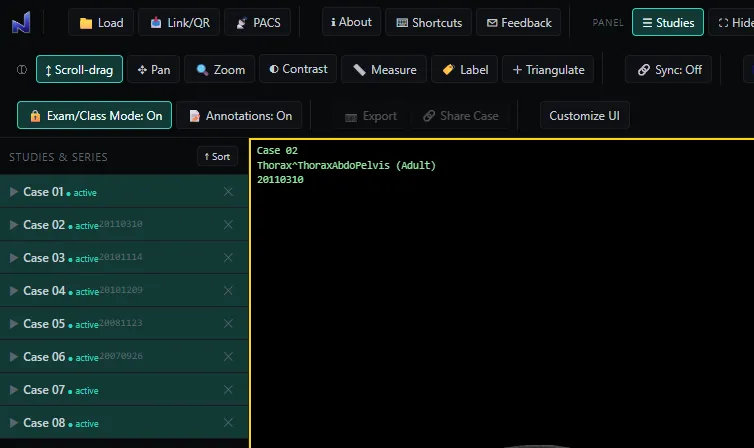
Stepping through cases
With several cases loaded, the Question controls step through the set. They move to the previous or next series within a case, and to the previous or next case.
Setting up an exam room
- Use a Chromium browser (Chrome, Edge, Brave or Opera) on each station.
- Load the case set from a USB drive or a folder. Nothing is installed and nothing is uploaded.
- 16GB of RAM is recommended for large or multi-study loads. On a smaller machine, load fewer series at once.
The viewer decodes and renders in the tab, so each station works on its own copy of the set.
What candidates need
No account. Once the set is loaded, the viewer keeps working offline while the tab stays open. Closing the tab removes the studies from the browser.
Related
It is not a certified medical device and is not intended for primary diagnostic use, and it does not replace a calibrated diagnostic workstation.